
Avro phonetic keybord is a powerfull and easy to use bangla typing software. After a long waiting period now it is available for ubuntu (only 9.04 or above).The main article is taken from here.

It is scim-avro, the open source edition of Avro Phonetic typing system in Linux. As many of you already guessed by knowing the name, it works as an IMEngine (plug-in) of scim (Smart Common Input Method). Scim is delivered now a day with most of the major Linux distributions, so the installation is really simple.
Update:
After initial release (version 0.0.1), scim-avro 0.0.2 is now available. Please download and install the updated version.
What's new in scim-avro 0.0.2:
 Fixed r-z fola (ram, rab etc.)
Added force আ in "A" (capital A), this fixes the problem of typing some words like এপিআই (epiAi)
Fixed a z-fola + r related bug. Previously there was a problem typing অ্যারোমেটিক (aZrOmeTik)
Added 20 millisecond pause after each internal backspace. This will help some applications process the Backspace first
Updated debian package description and section information.
Download:
For Ubuntu 9.04 (32 bit) & Linux Mint 7 (32 bit): scim-avro_0.0.2-1ubuntu9.04_i386.deb
For Ubuntu 9.10 (32 bit) & Linux Mint 8 (32 bit, upcoming): scim-avro_0.0.2-1ubuntu9.10_i386.deb
Installing scim-avro:
Ubuntu 9.04:
After downloading, double click to open the file with gdebi, click the Install package button. That’s all!
Ubuntu 9.10:
Install scim package through Synaptic Package Manager.
Then double click to open the scim-avro file (scim-avro_0.0.2-1ubuntu9.10_i386.deb) with gdebi, click the Install package button.

Updating from previous version:
No need to uninstall the previous version first. Install the package as usual. Then log off and log in again.
Making scim your default Input Method:
scim-avro depends on scim, so if you want to type Bangla in anywhere, you have to select scim as your default input method.
1. Open terminal
2. Type

Now you will see available options to choose from, watch the number beside scim (NOT scim-bridge, see known issues for details), type it and press Enter. (See the example screenshot, to select scim, you have to type 4 and then press enter. Follow whatever your terminal shows.)
3. Now log off and log in again from your system (or, press Ctrl+Alt+Backspace)
Testing scim-avro:
If you have installed scim-avro and made scim your default Input Method successfully, it is time to test it.
1. At first open an editor where you want to type Bangla. Now click on the scim icon in notification area (a keyboard icon), a list of available typing methods will be shown.

2. Select Avro Phonetic from there. Happy typing!
(After selecting Avro Phonetic, you can switch between Bangla and English mode by pressing Ctrl+Space. This keyboard shortcut is editable. If you want, you can change it to Avro's default F12 from scim's configuration dialog box. We'll show you how in the documentation.)
Known issues:
1. If you select scim-bridge (instead of scim) as your default input method in im-switch command, Avro Phonetic may not work properly in Open Office. This is not a bug of Avro. Select scim (instead of scim-bridge) as default input method.
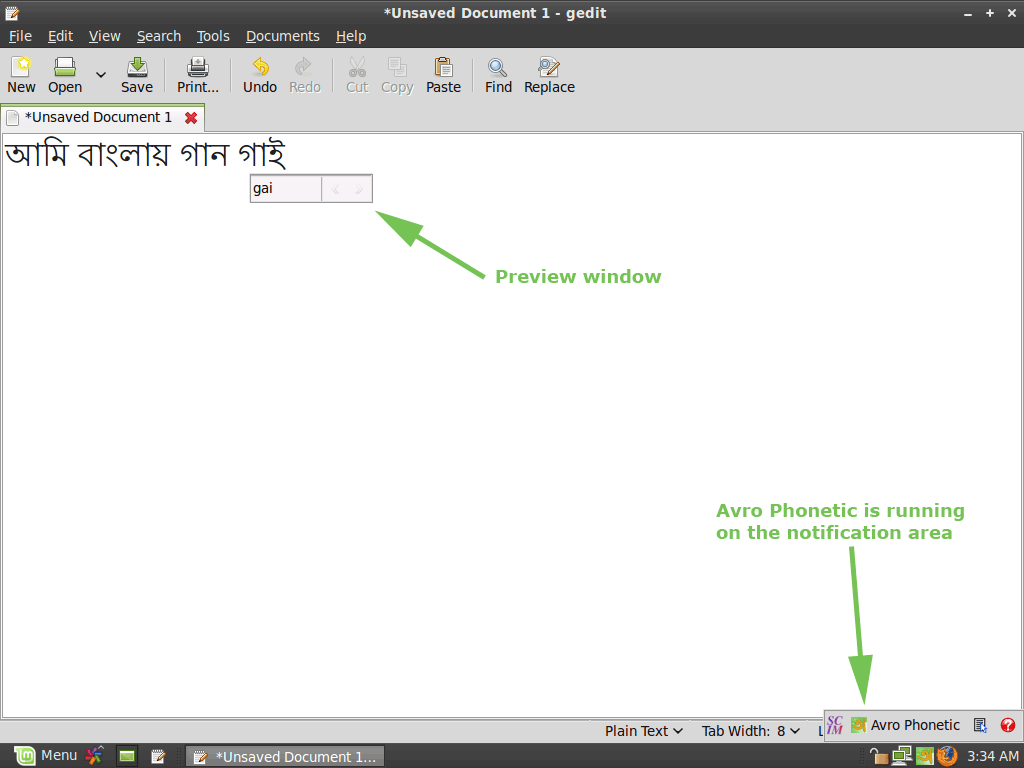
2. If you select scim (instead of scim-bridge), the preview window may not follow cursor in a number of gtk application (gedit, for example). You have to select scim-bridge as your default input method, instead of scim. But please read Known issue 1 to know about Open Office compatibility.
3. gedit itself has a problem with O-kar, OU-kar, OI-kar. We could fix that, but then the rest of the applications (like Firefox) would fall. If you must type Bangla in gedit (and you can ignore all other editors), please wait until the source-code is released. We will show you how to enable a specific portion of code and recompile the software.
It is scim-avro, the open source edition of Avro Phonetic typing system in Linux. As many of you already guessed by knowing the name, it works as an IMEngine (plug-in) of scim (Smart Common Input Method). Scim is delivered now a day with most of the major Linux distributions, so the installation is really simple.
Update:
After initial release (version 0.0.1), scim-avro 0.0.2 is now available. Please download and install the updated version.
What's new in scim-avro 0.0.2:
Fixed r-z fola (ram, rab etc.) Added force আ in "A" (capital A), this fixes the problem of typing some words like এপিআই (epiAi) Fixed a z-fola + r related bug. Previously there was a problem typing অ্যারোমেটিক (aZrOmeTik) Added 20 millisecond pause after each internal backspace. This will help some applications process the Backspace first Updated debian package description and section information.Download:
For Ubuntu 9.04 (32 bit) & Linux Mint 7 (32 bit): scim-avro_0.0.2-1ubuntu9.04_i386.deb
For Ubuntu 9.10 (32 bit) & Linux Mint 8 (32 bit, upcoming): scim-avro_0.0.2-1ubuntu9.10_i386.deb
Installing scim-avro:
Ubuntu 9.04:
After downloading, double click to open the file with gdebi, click the Install package button. That’s all!
Ubuntu 9.10:
Install scim package through Synaptic Package Manager.
Then double click to open the scim-avro file (scim-avro_0.0.2-1ubuntu9.10_i386.deb) with gdebi, click the Install package button.
Updating from previous version:
No need to uninstall the previous version first. Install the package as usual. Then log off and log in again.
Making scim your default Input Method:
scim-avro depends on scim, so if you want to type Bangla in anywhere, you have to select scim as your default input method.
1. Open terminal 2. Type CODE
im-switch -c
Now you will see available options to choose from, watch the number beside scim (NOT scim-bridge, see known issues for details), type it and press Enter. (See the example screenshot, to select scim, you have to type 4 and then press enter. Follow whatever your terminal shows.)
3. Now log off and log in again from your system (or, press Ctrl+Alt+Backspace)Testing scim-avro:
If you have installed scim-avro and made scim your default Input Method successfully, it is time to test it.
1. At first open an editor where you want to type Bangla. Now click on the scim icon in notification area (a keyboard icon), a list of available typing methods will be shown. 2. Select Avro Phonetic from there. Happy typing!(After selecting Avro Phonetic, you can switch between Bangla and English mode by pressing Ctrl+Space. This keyboard shortcut is editable. If you want, you can change it to Avro's default F12 from scim's configuration dialog box. We'll show you how in the documentation.)
Known issues:
1. If you select scim-bridge (instead of scim) as your default input method in im-switch command, Avro Phonetic may not work properly in Open Office. This is not a bug of Avro. Select scim (instead of scim-bridge) as default input method. 2. If you select scim (instead of scim-bridge), the preview window may not follow cursor in a number of gtk application (gedit, for example). You have to select scim-bridge as your default input method, instead of scim. But please read Known issue 1 to know about Open Office compatibility. 3. gedit itself has a problem with O-kar, OU-kar, OI-kar. We could fix that, but then the rest of the applications (like Firefox) would fall. If you must type Bangla in gedit (and you can ignore all other editors), please wait until the source-code is released. We will show you how to enable a specific portion of code and recompile the software.

Post a Comment